How it works
Find a flight in about a minute
Flight Tracker is a flight status app for Android. You give it a flight number, a route, or just your location, and it shows what our flight data provider is currently reporting for that flight — status, times, gate, terminal, and the arrival baggage carousel. This page walks through every screen and is honest about the edges.
Three ways to look up a flight
All three lead to the same flight detail screen. Pick whichever matches what you already know.
Step 1
Search by flight number
Enter the airline code and the number together with no spaces, the way it is printed on your booking or boarding pass — for example AI302 or BA117 — then pick the travel date. This is the quickest route when you already know the flight.
Step 2
Search by route
Pick a departure airport and an arrival airport and see the flights scheduled between them. Use this when you know where someone is flying from and to, but not the flight number.
Step 3
Start from a nearby airport
Let the app find airports around you, or browse flights within roughly 100 km of your location, then open the one you want. Handy at the terminal when you have the airport but no other details.
What a flight result shows
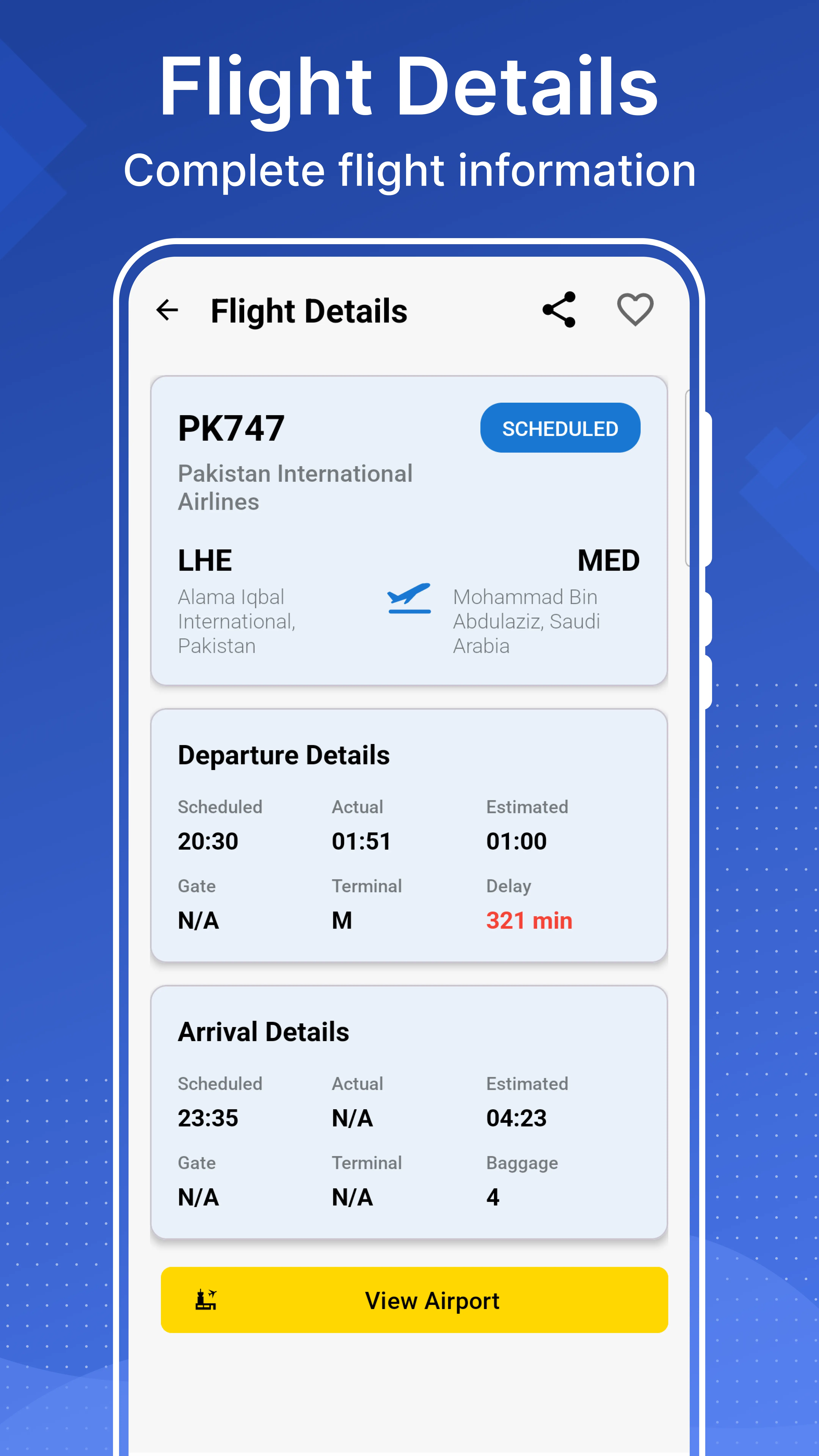
Open a flight and you get one screen for the whole journey — departure on one side, arrival on the other.
Status
Scheduled, departed, en route, landed, delayed, or cancelled — as last reported by our data provider, with the delay in minutes where one is reported.
Scheduled versus estimated times
Departure and arrival are shown as the scheduled time alongside the estimated or actual time, so you can see the size of a change rather than just a new number. Times are in each airport's local time.
Gate and terminal
Departure gate and terminal, and the arrival terminal where they are published. Gates are assigned late and change often, so treat this as a strong hint and follow the screens at the airport.
Baggage carousel
When the arrival airport publishes it, the app shows the baggage belt number for the flight — useful if you are meeting someone and want to know which hall to stand in.
Flight and aircraft
Airline name, flight number, route, and the aircraft type operating it where that is reported.
Save it for later
Bookmark a flight and it stays on your home screen for a quick re-check. Recent searches are kept too, so a flight you check twice a week takes two taps the second time.
Airport details you can look up
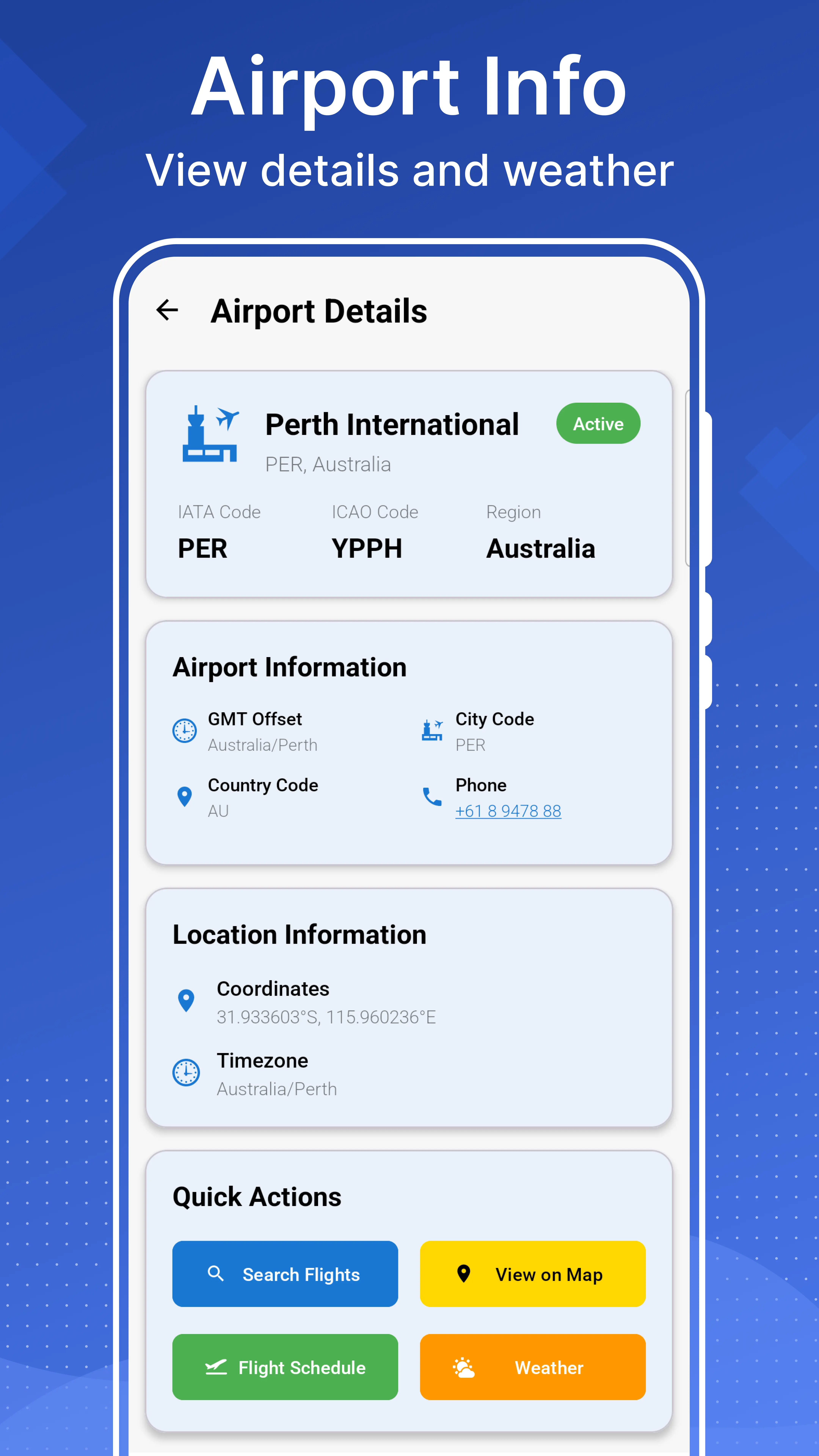
Search 4,000+ airports worldwide by name, filter by region or country, or let the app list the airports nearest to you. Each airport page carries:
- The IATA code (three letters, the one on your bag tag) and the ICAO code (four letters)
- Timezone and GMT offset, so you can convert a departure time without guessing
- Elevation above sea level
- Latitude and longitude, plus a pin on the map
- A published contact number for the airport where one is available
- Current conditions and a short forecast from Open-Meteo
The flight map
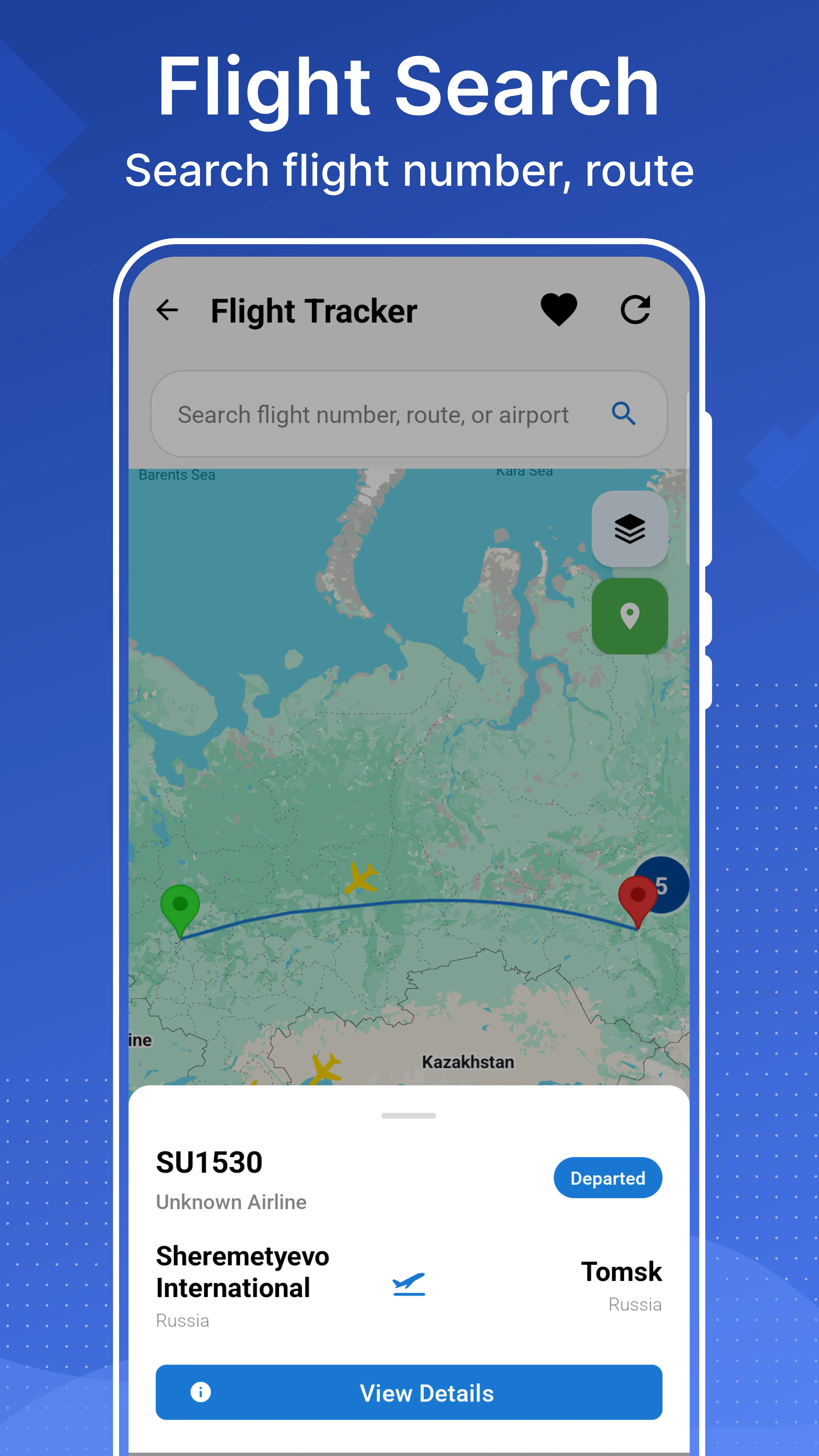
The map plots the positions that our flight data provider reports for flights it is tracking, with a marker per flight that you can tap to open the full detail screen. It is a map of reported positions, refreshed as new reports arrive — not a live sensor feed, and not every aircraft that is airborne. Think of it as a visual index of the flights in the data, useful for browsing a region and for finding a flight you cannot name.
Switch language whenever you like
The app ships in 15 languages and the switch is instant — pick a language in settings and the interface changes on the spot, with no restart and no re-download. The theme follows your system light or dark setting for the same reason: nothing to configure twice.